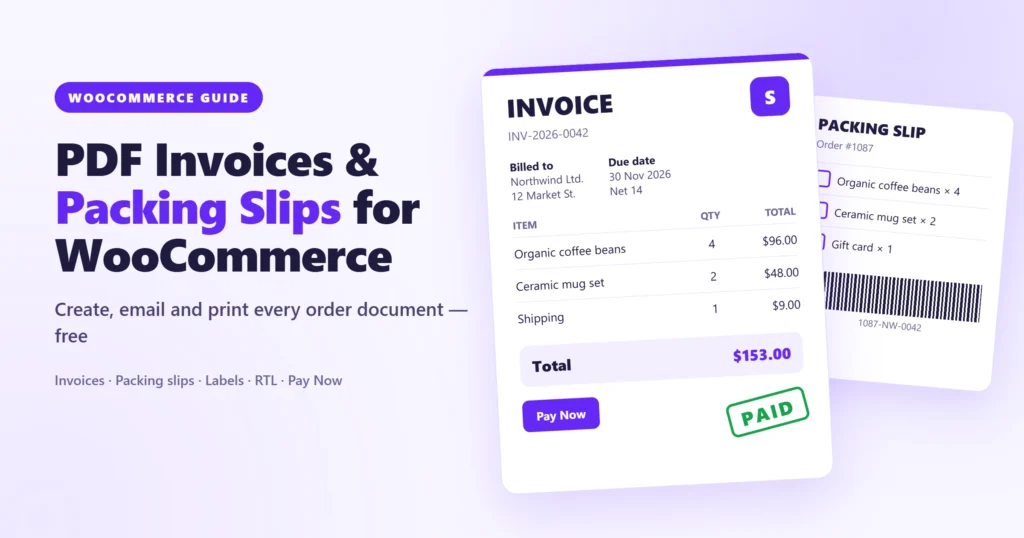
If you’ve ever opened a WooCommerce order and thought “where’s the invoice?”, you’re not alone. WooCommerce sends a nice order confirmation email, but it doesn’t create a proper invoice. No invoice number, no PDF, nothing you can hand to an accountant or a business customer who needs one for their books.
The same goes for the warehouse side. There’s no packing slip to drop in the box and no shipping label to stick on it. Most store owners end up copying order details into a template by hand, which is fine for five orders a week and miserable for fifty.
This guide shows you how to add PDF invoices, packing slips and shipping labels to WooCommerce for free, have them created and emailed automatically, and print them in bulk. It takes about ten minutes.
What WooCommerce gives you out of the box (and what’s missing)
Out of the box, WooCommerce handles the order itself: the order screen, the status, and the emails to you and the customer. What it doesn’t do:
- Invoices. No sequential invoice numbers, no invoice date, no PDF.
- Packing documents. No packing slip, delivery note or shipping label.
- Customer access. Customers can’t download an invoice from their account.
- Payment terms. No due dates, no “pay this invoice” link, no overdue tracking.
For a hobby store that may be fine. For anyone selling to businesses, shipping physical products, or working in a country with strict invoicing rules, it’s a gap you’ll feel quickly.
What a good invoice setup needs
Before choosing a tool, it helps to know what “good” looks like. A solid WooCommerce invoicing setup should:
- Create invoices automatically when an order is paid or processing.
- Use sequential numbers that never repeat, even if two orders arrive at the same second.
- Attach the PDF to the emails customers already get.
- Give your packers a packing slip without prices, and your shipping desk a label.
- Let you print many orders at once.
- Keep issued invoices unchanged. An invoice is a record, so it shouldn’t change because you later updated your logo.
- Keep the files private, so nobody can guess a URL and download someone else’s invoice.
We built Invoice Payment around exactly that list. It’s free on WordPress.org, and it’s what we’ll use below.
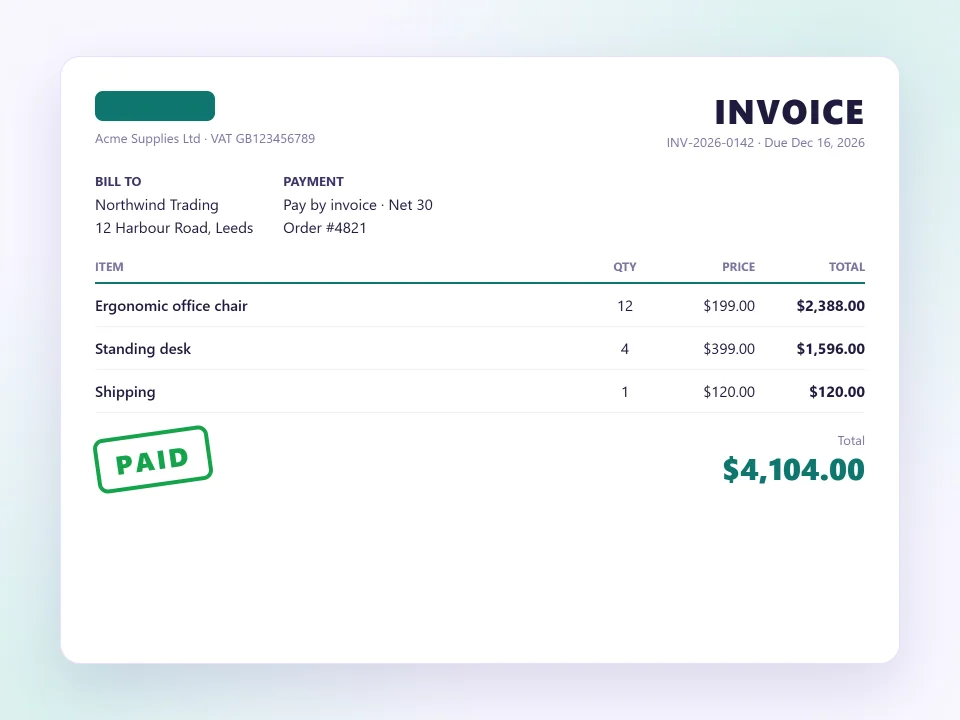
Step 1: Install Invoice Payment
Go to Plugins → Add New, search for Invoice Payment, then click Install Now and Activate.
You’ll need WordPress 6.2 or newer, WooCommerce 7.0 or newer and PHP 7.4 with the mbstring and GD extensions (almost every host has them). The plugin works with High-Performance Order Storage (HPOS) and the Cart and Checkout blocks.
Step 2: Run the setup wizard
On a fresh install you land in a short wizard. Every step is optional, but it’s the fastest way to get a good-looking invoice:
- Your business — shop name, logo, address and VAT number. Leave the address empty to use your WooCommerce store address.
- Documents — tick the ones you want: Invoice, Packing Slip, Delivery Note, Shipping Label and Dispatch Label.
- Look — choose a template (Modern, Classic or Minimal), an accent colour and a paper size.
- Emails and payment — attach the PDF invoice to customer emails, and optionally let customers pay by invoice.
Click Save and finish. You can change everything later under WooCommerce → Invoices.
Step 3: Create your first invoice
Open any order under WooCommerce → Orders. On the right you’ll see a new Documents box. Click Create Invoice and the order gets the next number (for example INV-0001) and today’s date. Click View PDF to see it.
From that box you can also edit the invoice number, date and due date, email the invoice to the customer, mark it paid, or rebuild it from the order if you changed something.
Tip: Want to experiment without using up real invoice numbers? Turn on Settings → Advanced → Test mode. Documents get a TEST watermark and nothing is stored.
Step 4: Make invoices automatic
Creating invoices one by one gets old fast. Go to WooCommerce → Invoices → Settings → Documents and open the Invoice block:
- Create automatically — choose the order statuses that issue the invoice. Processing and Completed are the usual choices.
- Attach to emails — pick the WooCommerce emails the PDF goes with, such as the processing order and completed order emails.
- Customer download — let customers download the invoice from My Account and the thank-you page.
From now on, every new order gets its invoice and the customer receives it without you lifting a finger.
Step 5: Set up your invoice numbers
Under Settings → Numbering you control the format. Tokens like {number}, {Y} and {m} let you build numbers such as INV-2026-0042. You can set the number of digits, the next number, and whether the sequence restarts every year.
Two habits will save you trouble later. Only ever raise the next number, never lower it, so a number can’t be handed out twice. And if numbers restart yearly, keep {Y} in the format so INV-0001 from 2026 and INV-0001 from 2027 don’t look identical.
Step 6: Print packing slips and shipping labels
This is where the plugin earns its keep in the warehouse. Packing slips, delivery notes and labels don’t need to be “created”. They’re built from the order every time you open them, so they always show the latest details.
- A packing slip lists items, SKUs and weight with a tick box per line, and no prices.
- A delivery note travels with the parcel and has “received by” and signature lines.
- A shipping label prints sender, recipient, tracking number and a barcode in 4×6 in, 4×4 in, 100×150 mm or A6.
- A dispatch label is for your own warehouse, with a big order number and an item checklist.
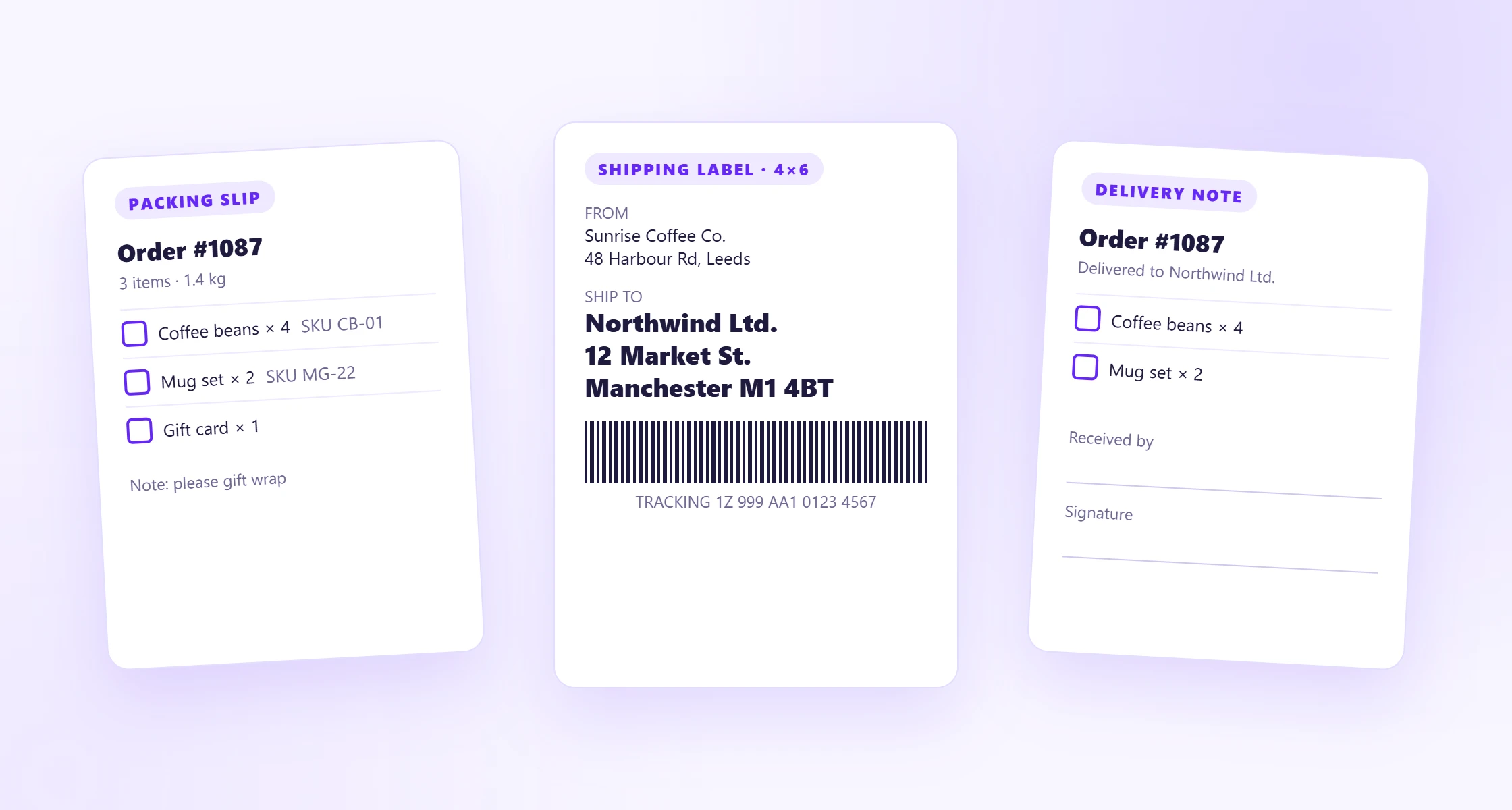
In the orders list you’ll find INV, PS, DN, SL and DL buttons on every row. For a busy morning, select a batch of orders and use the bulk action Print: Packing Slip (or any other document). You get one PDF with a page per order, ready for the printer.
Invoices in Arabic, Hebrew and other languages
If you sell in the Middle East, this part matters. Plenty of invoice plugins render Arabic as disconnected letters, or need a paid add-on for right-to-left layouts.
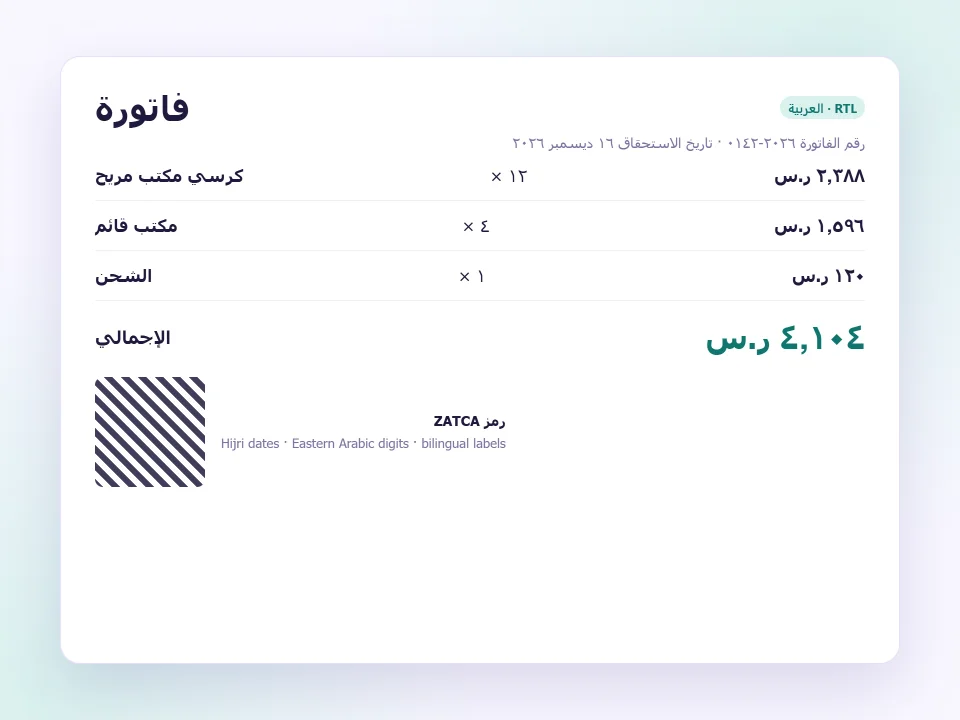
Invoice Payment handles Arabic, Hebrew, Persian and Urdu out of the box. The layout flips to right-to-left automatically based on your site language, Arabic letters join correctly, and you can switch to Eastern Arabic digits or add Hijri dates. There’s also an option to print every label in two languages, such as “Invoice number / رقم الفاتورة”, which is common in Saudi Arabia and the UAE.
For Chinese, Japanese, Korean, Thai, Indic scripts, Khmer or Burmese, install the matching font pack from the Templates tab in one click. For the full walkthrough, see how to create Arabic and RTL invoices in WooCommerce.
Get paid faster with due dates and Pay Now links
An invoice that just says “thanks for your order” is a receipt. If you sell on account to businesses, you want the invoice to do the chasing for you.
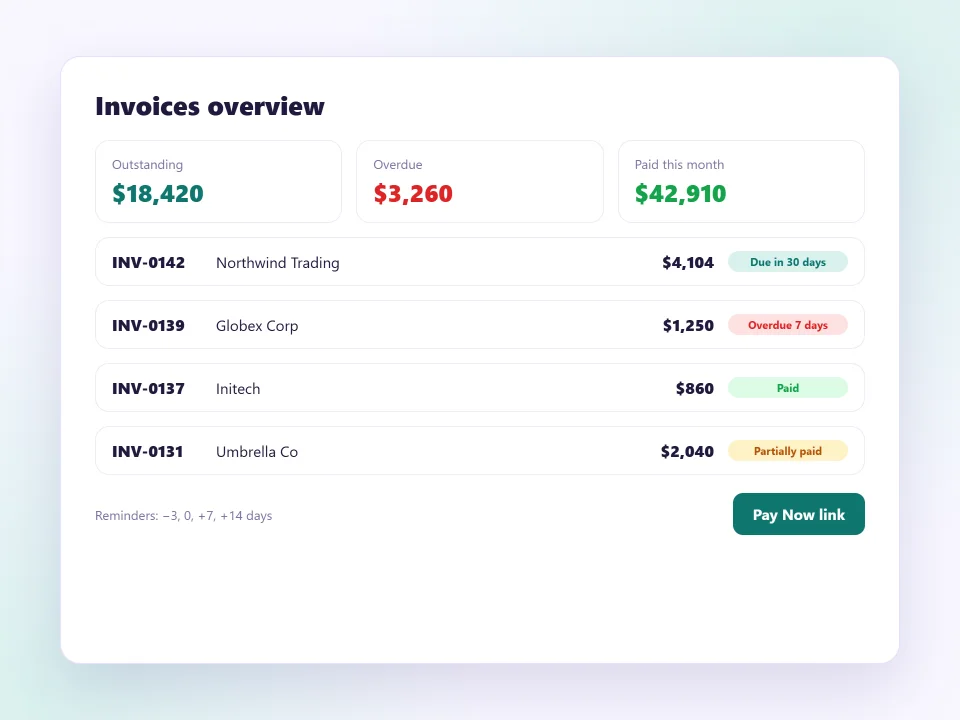
Under Settings → Invoice payment you can set payment terms (14 days, for example). The due date is printed on the invoice, and a Pay Now link lets the customer pay online with any gateway on your store. Invoices are marked overdue automatically after the due date, and you can send a reminder email a few days later.
If that sounds useful, pair it with the built-in pay-by-invoice gateway, so business customers can place the order now and pay later. We covered that setup step by step in How to Let Customers Pay by Invoice in WooCommerce.
E-invoicing and compliance
Rules differ by country, so always check yours with an accountant. The free plugin gives you the building blocks that most rules ask for:
- Sequential numbers that are never reused. Deleting an invoice leaves a gap rather than a duplicate.
- A tax summary grouped by rate, and an automatic reverse-charge note for VAT-registered customers charged no tax.
- UBL 2.1 and Peppol BIS 3.0 XML e-invoices.
- A SEPA payment QR (GiroCode) for euro invoices and the ZATCA QR required on Saudi simplified tax invoices.
Already using another invoice plugin?
You don’t have to start your numbering from scratch. If you use PDF Invoices & Packing Slips by WP Overnight or the WebToffee invoice plugin, go to WooCommerce → Invoices → Tools → Switch from another invoice plugin and click Start import. Your settings, logo, number format and next number come across right away, and past invoice numbers are imported in the background. Nothing changes in the other plugin. Just deactivate it afterwards so customers don’t get two invoices.
When you’ll want Invoice Payment Pro
The free plugin covers most stores. Invoice Payment Pro is for when your paperwork gets more serious:
- Credit notes created automatically when you refund an order.
- Proforma invoices and payment receipts.
- Pick lists sorted by shelf location, and plain address labels.
- Eight premium templates, including Arabic Classic, Bilingual and an 80 mm thermal receipt.
- Partial payments, late fees, reminder schedules and customer statements.
- Factur-X, ZUGFeRD and XRechnung for German and French B2B invoicing, plus ZIP exports for your accountant.
Frequently asked questions
Does WooCommerce create invoices by default?
No. WooCommerce sends order emails but doesn’t create numbered PDF invoices, packing slips or labels. You need a plugin such as Invoice Payment for that.
Can customers download their own invoices?
Yes. Turn on the Invoices tab in My Account under Settings → Customer access. Customers see every invoice with its status and due date, plus a download button. Links are signed, and the files sit in a private folder that can’t be opened directly.
Will changing my logo change old invoices?
No, and that’s on purpose. An issued invoice keeps the look it was issued with. If you really want the new design, use Rebuild from the order on that order.
Is the free version enough for a small store?
For most small and mid-sized stores, yes. You get five document types, three templates, automatic emails, bulk printing, right-to-left support and e-invoices without paying anything.
Wrapping up
Invoices and packing slips are one of those jobs that quietly eat an hour a day until you automate them. Install Invoice Payment, spend ten minutes on the wizard and the document settings, and every order from now on arrives with its invoice, slip and label ready.
Download Invoice Payment free, try the live demo, or read the full documentation.