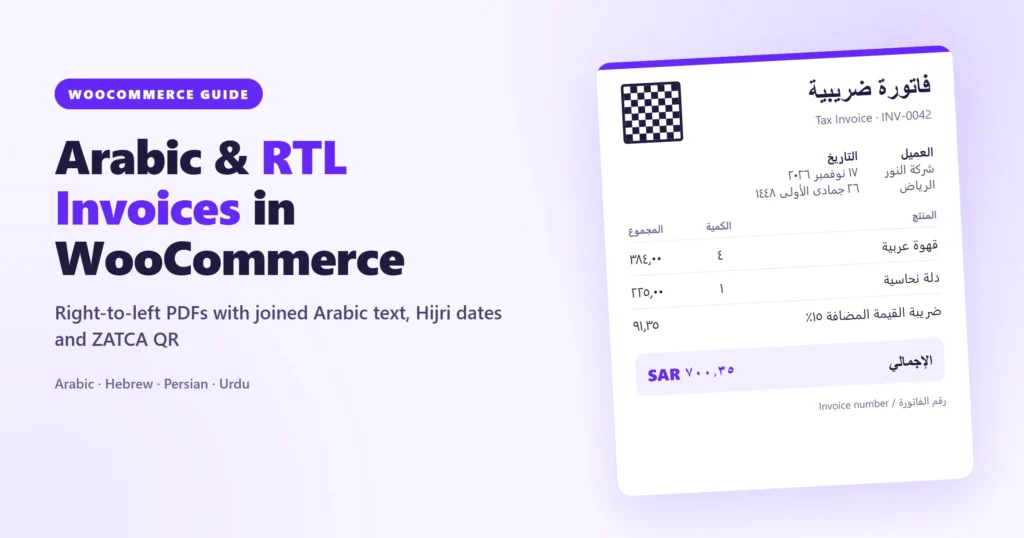
If you sell to customers in Saudi Arabia, the UAE, Egypt, Israel, Iran or Pakistan, you’ve probably hit this already. You install a WooCommerce invoice plugin, generate a PDF, and the Arabic product names come out as a row of separated letters running the wrong way. Or the whole layout stays left-to-right, with the logo on the left and the total in the wrong corner.
Most PDF libraries weren’t built with right-to-left scripts in mind, and many invoice plugins treat RTL as a paid add-on or an afterthought. This guide shows you how to create proper Arabic, Hebrew, Persian and Urdu invoices in WooCommerce, with correct text shaping, a mirrored layout, Eastern Arabic digits, Hijri dates and the ZATCA QR code. All of it works in the free version.
Why Arabic invoices break in most plugins
Arabic is harder to render than most scripts, for two reasons.
- Letters change shape. An Arabic letter looks different at the start, middle or end of a word, or on its own. A PDF engine has to pick the right shape for every letter and join them. If it doesn’t, you get disconnected letters that look broken to every Arabic reader.
- Text runs right to left, but numbers don’t. Phone numbers, SKUs, prices and invoice numbers stay left to right inside an RTL sentence. Get that wrong and “INV-0042” turns into “2400-VNI”.
A good RTL invoice also mirrors the whole layout. The logo moves to the right, the item column starts on the right, and amounts align to the left. That’s what Arabic-speaking customers expect to see.
What you need
We’ll use Invoice Payment, our free WooCommerce plugin for PDF invoices, packing slips and shipping labels. Right-to-left support is built into the free plugin, so there’s no extra add-on to buy.
If you haven’t set up invoices yet, start with our guide on how to add PDF invoices and packing slips to WooCommerce. Then come back here for the RTL part.
Step 1: Let the direction follow your site language
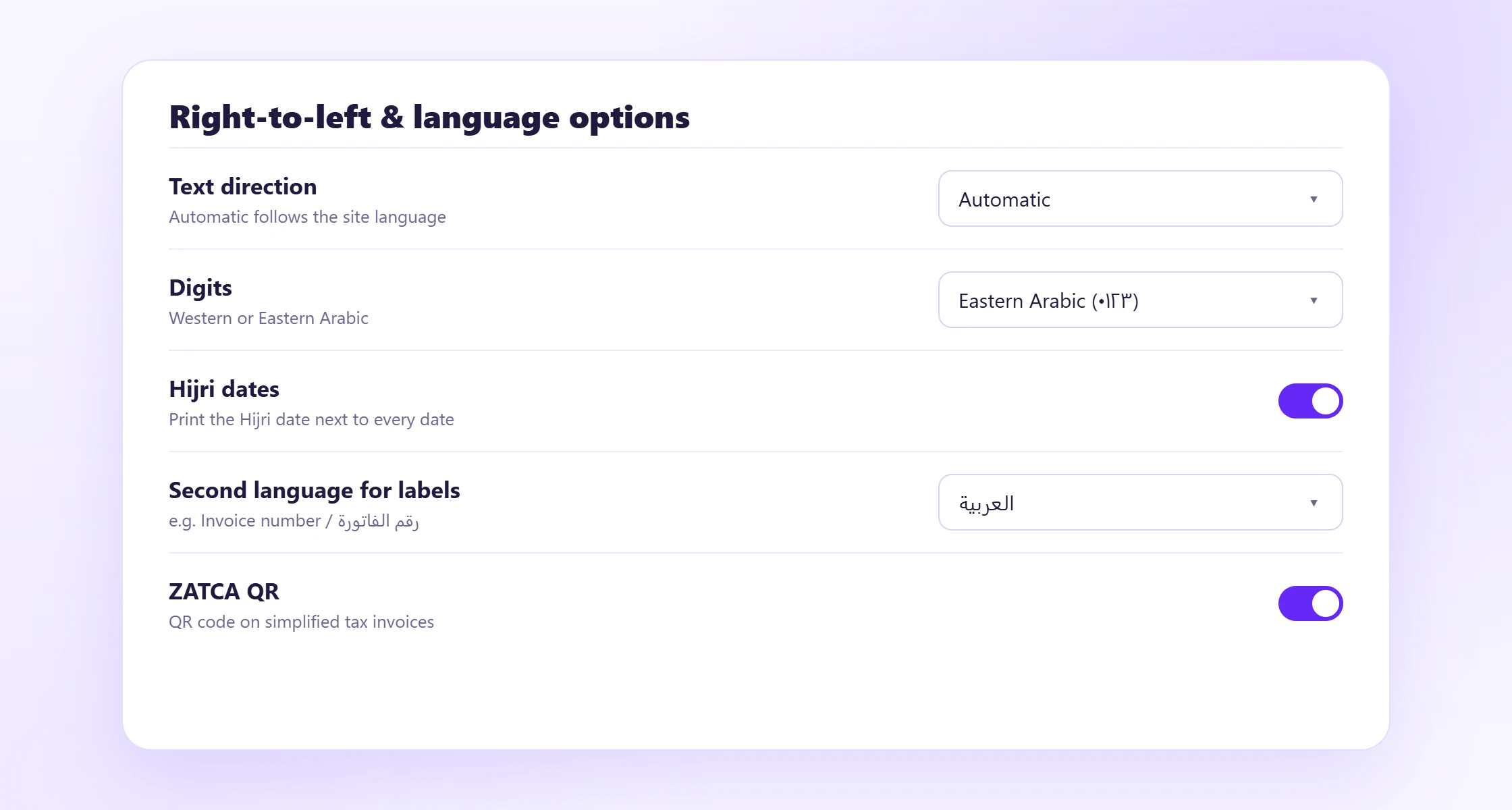
Go to WooCommerce → Invoices → Templates and find Text direction. You have three options:
- Automatic follows your site language. If WordPress is set to Arabic, Hebrew, Persian or Urdu, documents switch to right-to-left on their own.
- Right to left forces RTL on every document. This is useful if your admin is in English but your customers read Arabic.
- Left to right forces LTR.
For most stores, Automatic is the right choice. The preview on the right updates as you change settings, so pick a real order in the preview toolbar and check how it looks.
Step 2: Check the font
Invoice Payment ships with the XB Riyaz and DejaVu fonts, which join Arabic letters correctly. You don’t need to install anything for Arabic, Hebrew, Persian or Urdu.
One thing to watch: if you add custom CSS, don’t add letter-spacing to Arabic text. Extra spacing breaks the joins between letters, and you’re back to the disconnected look.
Mixed-language invoices are handled too. If your invoice is in English but a product name is in Arabic, that name automatically uses a font that can draw it.
Step 3: Choose your digits and dates
Under the same settings you’ll find two options that make an invoice feel local:
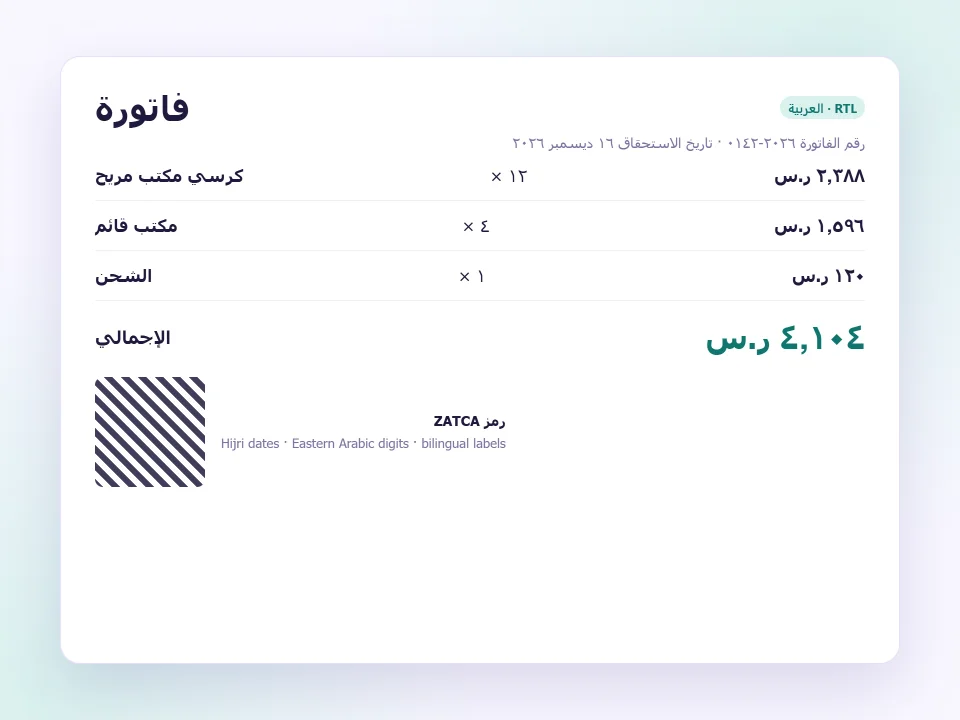
- Digits. Switch between Western digits (0123456789) and Eastern Arabic digits (٠١٢٣٤٥٦٧٨٩). Both are common in the Gulf, so choose whichever your customers expect.
- Hijri dates. Prints the Hijri date next to every Gregorian date. This needs the PHP intl extension. Most hosts have it, and Tools → System status will tell you if yours doesn’t.
Step 4: Print labels in two languages
In Saudi Arabia and the UAE, many businesses print invoice labels in both Arabic and English, such as “Invoice number / رقم الفاتورة” and “Total / الإجمالي”.
Turn on Second language for labels and pick the language. Every label on the document is then printed twice. Only languages installed on your site appear in the list. Add one under Settings → General → Site Language first if you need to.
Arabic, Hebrew, Persian and Urdu label translations ship with the plugin, so your documents can use them even when the rest of your site is in English.
Step 5: Add the ZATCA QR code (Saudi Arabia)
If you sell in Saudi Arabia, simplified tax invoices need a QR code under ZATCA’s e-invoicing rules. Invoice Payment generates the Phase 1 QR code, which encodes the seller name, VAT number, timestamp, invoice total and VAT amount.
To switch it on:
- Enter your shop name and VAT number under Settings → Shop details.
- Go to Settings → Invoice payment → Invoice contents and turn on ZATCA QR.
A note on Phase 2: ZATCA’s second phase requires businesses to send invoices to its FATOORA platform for clearance or reporting. That integration isn’t part of the plugin. If your business falls under Phase 2, check what you need with your accountant or a ZATCA-approved solution provider.
While you’re in Invoice contents, also turn on the Tax summary. It adds a table of VAT grouped by rate, which accountants in the region usually ask for.
Step 6: Test with a real order
Before going live, open a real order and click View PDF in the Documents box. Check these points:
- Arabic product names are joined and read right to left.
- The logo and your address sit on the right.
- Invoice numbers, SKUs and phone numbers read left to right.
- Totals and VAT are correct, with the digits you chose.
- The QR code scans with a phone camera.
If you want to test without using up invoice numbers, turn on Settings → Advanced → Test mode first. Documents get a TEST watermark and nothing is stored.
Other languages and scripts
Hebrew, Persian and Urdu work exactly like Arabic, using the same direction setting and bundled fonts.
Selling to East or South Asia as well? Chinese, Japanese, Korean, Thai, Indic scripts (Hindi, Bengali, Tamil and more), Khmer and Burmese each need a font pack. Install them from Templates → Fonts for other scripts with one click. Each pack is downloaded once, checked against a checksum and stored on your server.
If a currency symbol can’t be drawn by any installed font, it’s replaced with the currency code automatically, so you’ll see “BDT” rather than an empty box.
When to upgrade to Pro
The free plugin covers everything above. Invoice Payment Pro adds a few things that matter for RTL stores:
- An Arabic Classic template designed for right-to-left, with an Arabic typeface and framed header.
- A Bilingual template with room for both languages side by side.
- Multilingual documents with WPML, Polylang or TranslatePress, so each invoice is written in the language the order was placed in.
- Credit notes, proforma invoices, partial payments and statements.
Frequently asked questions
Do I need a separate RTL add-on for Arabic invoices?
No. Right-to-left layout, Arabic shaping and the fonts are all built into the free Invoice Payment plugin.
Can my admin stay in English while invoices are in Arabic?
Yes. Set Text direction to Right to left, and the bundled Arabic labels are used on the documents even though your dashboard stays in English. With Pro, each order’s own language is used automatically.
Why do my Arabic letters still look separated?
Usually it’s custom CSS that adds letter-spacing, or a custom font that doesn’t support Arabic shaping. Switch back to DejaVu Sans or XB Riyaz and remove any letter-spacing from Arabic text.
Is the ZATCA QR code enough for Saudi compliance?
It covers the Phase 1 QR requirement for simplified tax invoices. Phase 2 needs integration with ZATCA’s FATOORA platform, which the plugin doesn’t do. Confirm your obligations with an accountant.
Wrapping up
Arabic customers notice immediately when an invoice looks broken, and it makes a store look less trustworthy than it is. With the right setup, your invoices read naturally in Arabic, Hebrew, Persian or Urdu, and Saudi invoices carry the QR code they need.
Download Invoice Payment free, try it on the live demo, or read the Templates, Languages & RTL docs.