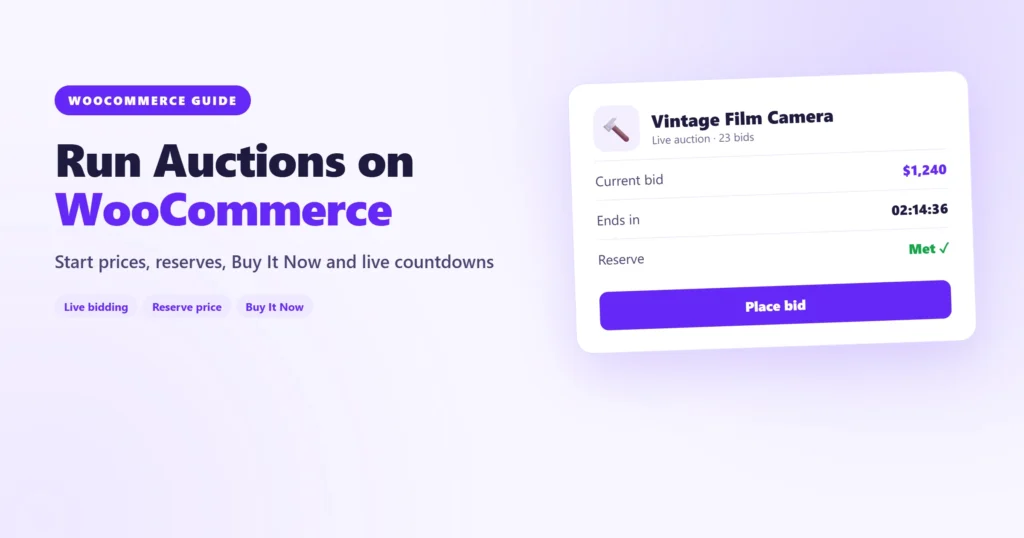
Auctions are one of the best ways to sell items where the “right” price is hard to pin down: collectibles, vintage gear, art, refurbished electronics, one-off pieces and charity lots. Instead of guessing a price, you let buyers tell you what something is worth.
WooCommerce doesn’t run auctions out of the box. It sells products at a fixed price, and that’s it. In this guide you’ll add proper auctions to your store, set one up from start to finish, and learn the small settings that make bidders trust you.
What a good WooCommerce auction needs
Before you pick a tool, it helps to know what a smooth auction looks like for the buyer:
- A clear start price and end time, with a live countdown.
- Real-time bids, so nobody refreshes the page to see if they’ve been outbid.
- A reserve price, so you never sell below the minimum you’ll accept.
- Buy It Now, for buyers who’d rather pay a fixed price and skip the wait.
- Winner-only checkout, so the item can only be bought by the person who won.
You also want auctions to behave like normal products, so your theme, payment gateways, shipping and taxes keep working. That’s exactly how Bidra works: auctions are real WooCommerce products with an extra Auction tab. The free version is on WordPress.org.
Step 1: Install Bidra
In your dashboard, go to Plugins → Add New, search for Bidra, then install and activate it. Because auctions are a product type, there’s nothing else to connect.
Step 2: Create your first auction
Go to Products → Add New and build the product as you normally would: title, description, photos and category. Then, in the Product data box, choose Auction as the product type. A new Auction tab appears where you set:
- Start price: the opening bid.
- Start and end date: the auction opens and closes on its own.
- Reserve price (optional): a hidden minimum. If bidding doesn’t reach it, the item isn’t sold.
- Buy It Now price (optional): lets a buyer end the auction early by paying this amount.
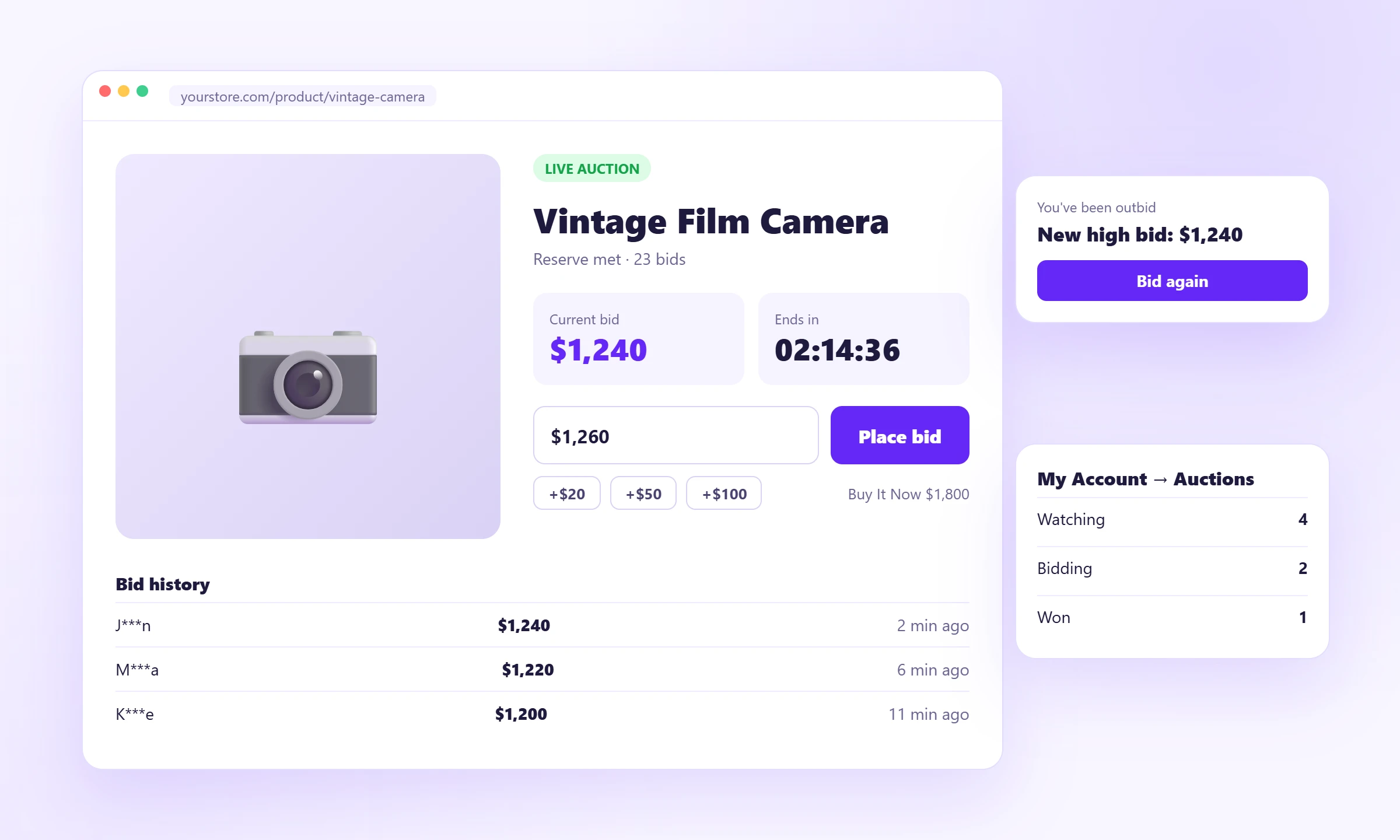
Publish the product and it shows in your shop with a Live badge, the current bid and a countdown.
Step 3: Make bidding easy (and safe)
A few details make a big difference to how many people bid:
- Quick bid buttons. One-click amounts above the current bid mean fewer typos and faster bidding.
- Bid confirmation. A short “Confirm your bid of $120?” step stops someone from bidding $1,200 by accident.
- Status messages. Bidders see You are winning or You’ve been outbid right on the product page.
- Local times. End times show in each visitor’s own time zone, with an Add to calendar link, so nobody misses the final minutes.
Step 4: Schedule auctions in advance
You don’t have to sit in front of your dashboard when an auction ends. Set the start and end dates when you create the product, and Bidra opens the auction, closes it and picks the winner on time. That makes it easy to line up a week of auctions on Sunday evening and let them run.
Tip: End auctions when your buyers are online. For most stores that’s an evening or weekend, not 3 AM on a Tuesday. The last few minutes are when most bids arrive.
Step 5: Let the winner pay
When the auction closes, Bidra picks the winner and emails them a payment link. Only the winner can buy a finished auction, and they pay through your normal WooCommerce checkout, with your usual gateways, shipping rates and taxes. The order then shows up in WooCommerce → Orders like any other.
Bidders can also keep track of everything in My Account → Auctions: active bids, auctions they’ve won with a Pay now button, and their watchlist.
Tips for auctions that sell
- Start lower than you think. A low start price attracts early bids, and early bids attract more bidders. Use a reserve to protect your minimum.
- Write honest descriptions. List condition, flaws and what’s included. Trust is everything in an auction.
- Use great photos. Several angles, close-ups of any wear, and a photo for scale.
- Show urgency. “Ending soon” badges and the live countdown do a lot of the selling for you.
- Promote before the end. Share the auction link with your email list a day before it closes.
When you need more: Bidra Pro
The free plugin runs complete auctions. Bidra Pro adds formats and controls for bigger operations, such as sealed, reverse and Dutch auctions, timed auction events with lots, buyer premiums and approved bidders.
You can try every Pro feature on the live Bidra demo store before you buy.
Wrapping up
Running auctions on WooCommerce comes down to four things: a clear start price and end time, live bidding, a reserve to protect you, and a checkout only the winner can use. Set up your first auction today, pick a good end time, and let your buyers decide what your best items are worth.
Download Bidra free or explore the Bidra plugin page.