Email is great, but a text message gets read. Most people open an SMS within minutes, which makes it the perfect way to tell a customer their order is done.
In this guide you’ll find seven short SMS templates for completed WooCommerce orders, and a simple way to send them automatically through Twilio.
Why send an SMS when an order is completed?
- It gets seen. Order emails often land in a promotions tab. A text lands on the lock screen.
- It cuts support questions. Customers who know their order is done don’t need to ask.
- It feels personal. A short, friendly message builds trust in your store.
How to send order SMS automatically
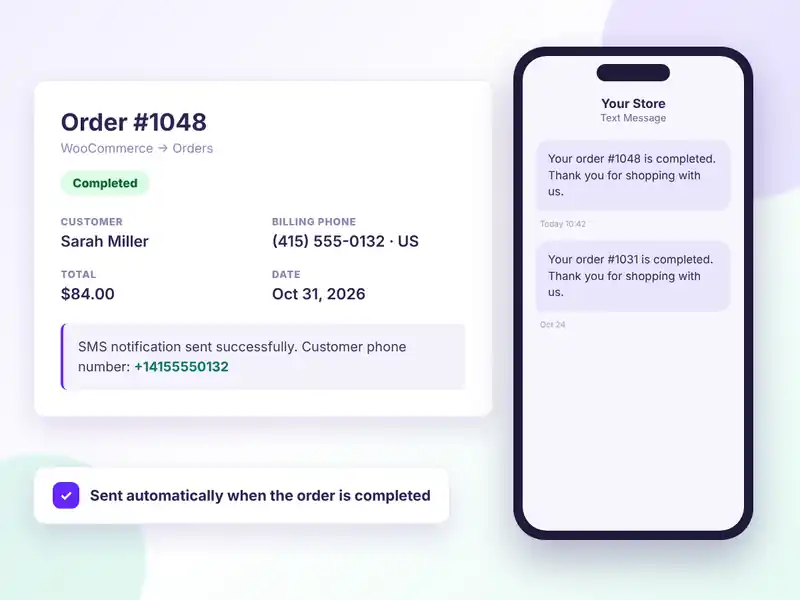
We’ll use SMS Manager, a free plugin on WordPress.org. It sends an SMS through Twilio the moment an order is marked Completed, using a message you write.
- Install SMS Manager from Plugins → Add New.
- Go to Settings → SMS Manager and add your Twilio Account SID, Auth Token and Twilio phone number.
- Write your message, using placeholders for the order number, status, total and date.
- Switch notifications on. From now on, every completed order sends a text.
Local billing numbers automatically get the right country code from the billing country, and each send is logged as an order note, including Twilio’s error message if a text is rejected. You can also send the SMS by hand from any order with the Send order SMS to customer action.
7 SMS templates you can copy
Replace the placeholders with the ones in your SMS Manager settings. Keep messages under 160 characters so they arrive as a single SMS.
1. Simple and friendly
Hi! Your order #[order number] is complete. Thanks for shopping with [store name]!
2. Shipped products
Good news: order #[order number] is complete and on its way. Questions? Reply to this text or visit [store URL].
3. Local delivery or pickup
Your order #[order number] is ready! Total: [order total]. See you soon at [store name].
4. Digital products
Order #[order number] is complete. Check your email for your download link. Enjoy!
5. Restaurants and food
Your order #[order number] is ready and heading your way. Enjoy your meal from [store name]!
6. Ask for a review
Thanks for order #[order number]! If you love it, a quick review means the world to us: [review link]
7. Bring them back
Order #[order number] complete. Thanks for being a [store name] customer. We’d love to see you again soon!
Tips for order SMS that customers like
- Always include your store name. Customers should know who is texting them.
- Keep it short. One message, one purpose.
- Don’t overdo it. One text per order is plenty. Save promotions for customers who opted in.
- Respect the law. Only text customers who gave you their number for order updates, and follow the SMS rules in your country.
- Test first. Send a test order to your own phone before switching it on for everyone.
Wrapping up
A single, well-written text when an order is completed makes customers feel looked after and saves you support time. Pick a template, connect Twilio, and let SMS Manager handle the rest.
Download SMS Manager free or try the live demo.