“Where is my order?” is the most common message local stores receive. Restaurants, grocery stores, pharmacies and florists all hear it many times a day, usually from customers who are simply waiting at home and want to know when to expect a knock on the door.
The fix is simple: show customers a delivery timeline on their order page, updated in real time by the person delivering it. In this guide you’ll set that up in WooCommerce using your own delivery team, with no courier account and no per-order fees.
What a delivery timeline looks like
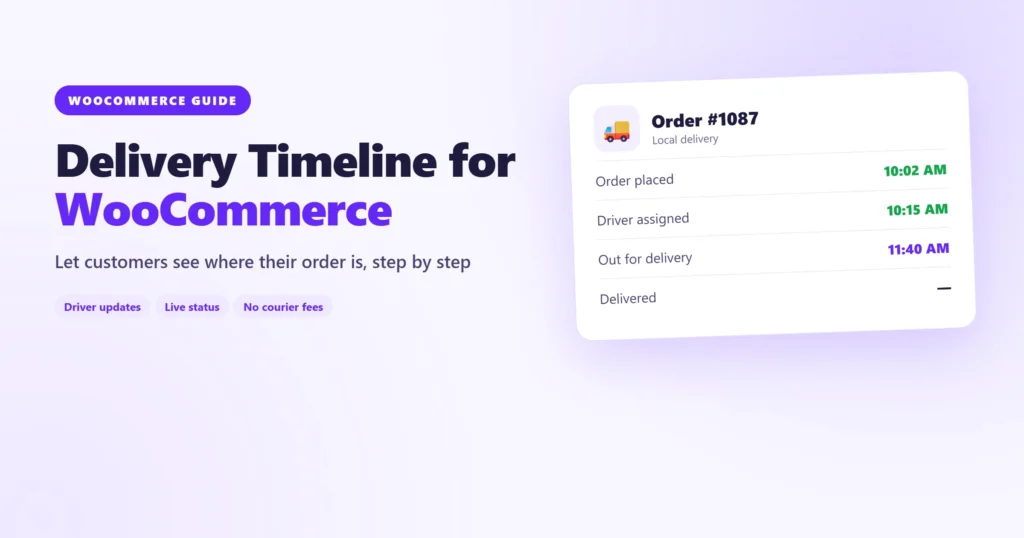
On the customer’s order page, they see each step with the time it happened:
- Order placed
- Driver assigned
- Out for delivery
- Delivered
Every step is updated by your staff, so the timeline is always accurate, and customers stop guessing.
What you need
We’ll use Delivery Manager for WooCommerce, a free plugin on WordPress.org. It adds a delivery person role, order assignment, delivery status tracking and the customer timeline to your store.
Step 1: Install the plugin
Go to Plugins → Add New, search for Delivery Manager for WooCommerce, then install and activate it. A Delivery Person user role is created automatically, with only the access delivery staff need.
Step 2: Add your drivers
Go to Users → Add New and create an account for each driver with the Delivery Person role. They don’t get access to your WooCommerce settings or other orders, just their own deliveries.
Step 3: Assign a driver to an order
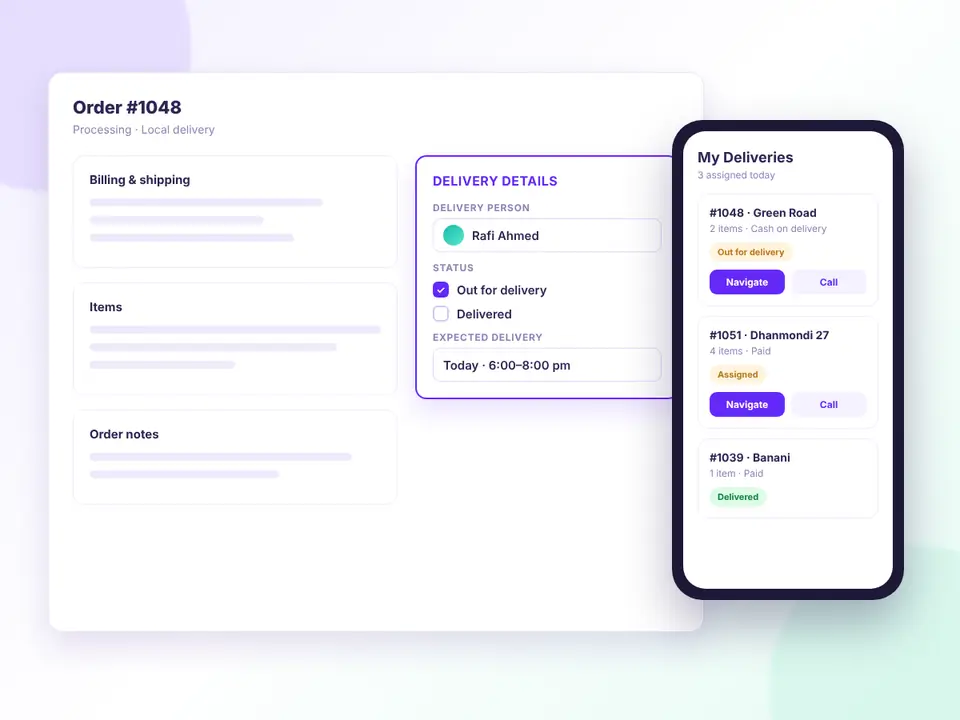
Open an order in WooCommerce → Orders. In the Delivery Details box, search for a driver by name, username or email and assign them. An order note is added automatically, so the order history shows who was assigned and when.
Step 4: Let drivers update the status from their phone
Each driver gets a Deliveries page in My Account, showing only their own orders with the address, phone number and items. From the doorstep, they tap Out for Delivery when they leave and Delivered when the order is handed over. The time of each step is saved on the order.
No admin access, no app to install: it works in the phone’s browser.
Step 5: Customers follow the timeline
As soon as a driver updates the status, the customer sees it on their order page. Combined with your normal WooCommerce emails, this answers most “where is my order?” questions before they’re asked.
Tips for smoother local deliveries
- Assign drivers early. Even if the order isn’t ready, an assigned driver reassures the customer.
- Ask drivers to update on the spot. The timeline is only as good as the updates behind it.
- Group orders by area. Assign orders in the same neighbourhood to the same driver.
- Check order notes. They give you a full history if a customer asks what happened.
Going further
Delivery Manager Pro adds more tools for growing delivery teams. You can also explore every feature on the live demo before installing.
Wrapping up
A clear delivery timeline turns waiting into confidence. Assign a driver, let them update the status from their phone, and your customers will always know where their order is.
Download Delivery Manager free or read the documentation.