
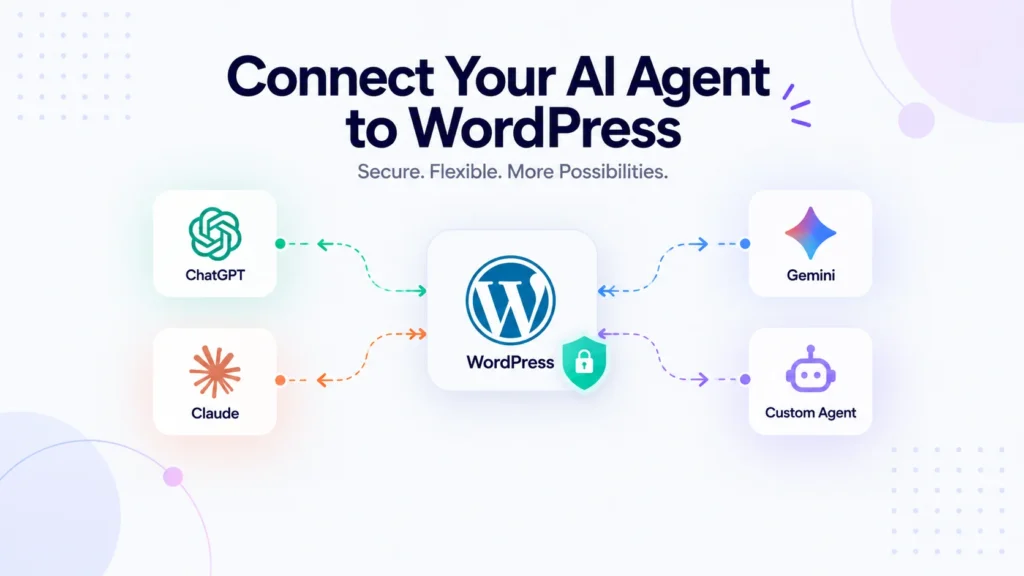
Want to connect Claude, ChatGPT, Cursor, or any other AI agent directly to your WordPress site? You’re debugging a site. Your AI assistant could probably spot the problem in seconds, except it can’t see anything. So you copy the error log into the chat. Then the plugin list, the post content. Then you paste the answer back into WordPress by hand.
That copy-paste loop is where most “AI for WordPress” workflows actually live. The AI is smart, but it’s working blind, describing a site it has never seen based on whatever you managed to paste into a chat window.
There’s a better way now, and it’s built on an open standard. In this guide, we’ll show you how to connect Claude, ChatGPT, Cursor, or any other AI agent directly to your WordPress site using Sokket, a free, self-hosted MCP server.
What Is MCP, and Why Does It Matter?
MCP, the Model Context Protocol, is the standard AI clients use to work with outside systems. A system exposes tools, which are named operations the AI can call, and the AI decides which ones it needs to answer your question or complete your task.
Sokket makes your WordPress site one of those systems. Instead of describing your site to an AI, you connect it. Your agent can then read your error log, list your plugins, search your content, and make changes, all within permissions you define.
The difference in practice is significant:
- “Why is this site throwing a 500 error?” — the agent reads the PHP error log, checks the environment, and sees which plugins updated recently.
- “Which plugins have updates available?” — it tells you, with your WordPress and PHP versions for context.
- “Find every post mentioning the old pricing and fix it.” — it searches, reads, and updates the content itself.
- “Draft a post from these notes and set a featured image.” — it creates the draft, uploads the image, and attaches it.
- “Clear the comment moderation queue.” — it reads the pending queue, approves the genuine ones, and spams the rest.
The Part That Makes This Different
Here’s what separates Sokket from nearly every other AI plugin in the WordPress directory.
It is not an AI content generator. Sokket writes nothing by itself and calls no AI provider. It’s the connector that lets the AI client you already pay for reach your site safely.
That distinction has real consequences:
- 100% self-hosted. The MCP server runs inside your WordPress install. No SaaS component, no account to create, and no middleman marking up API calls.
- No external service calls. The plugin makes no outbound requests to any AI provider or any other service. It never sends your data anywhere. It only receives inbound connections from clients you configure, on an endpoint you can switch off at any time.
- No AI API keys. Sokket is provider-agnostic and stores no AI credentials. Your AI client authenticates to your site, not the other way around.
If you’ve hesitated to use AI tooling because it meant shipping your content to a third party, this is the model that solves it.
Works With the Client You Already Use
The endpoint speaks Streamable HTTP with JSON-RPC 2.0, so any MCP-compatible client works. A built-in setup generator produces the exact command or config for yours, with your endpoint already filled in:
- Claude Code — a single
claude mcp addcommand - Claude Desktop — a custom connector via OAuth, or a bearer token through
mcp-remote - ChatGPT — a developer-mode connector with bearer authentication
- Cursor, VS Code, and Windsurf — ready-made config blocks
- Any other MCP client — the raw endpoint, transport, and auth header
Setting It Up
The whole process takes a few minutes.
1. Install the plugin. Go to Plugins → Add New, search for Sokket, install and activate. Nothing is exposed yet, because the MCP server is disabled by default.
2. Turn on the server. Under Sokket → Settings → General, tick Enable MCP server and save. Copy your endpoint URL, then click Test connection to confirm it’s reachable and enforcing authentication.
3. Create a credential. Under Settings → Access, give a token a label, pick the WordPress user it runs as, leave Read-only ticked to start, and choose which tools it may call. Copy the token, which is shown exactly once.
Prefer sign-in based connections? Enable OAuth 2.1 instead, and clients configure themselves from the endpoint URL alone.
4. Connect your client. Under Connections → Connect your AI client, choose your client and copy the generated command or config. Then ask your agent what versions the site is running, and watch the call appear in your audit log.
Security: Never Just Trust the Agent
Sokket is built on the assumption that you shouldn’t have to take an AI agent’s word for anything. The safeguards are layered:
- The server is disabled by default and rejects every request until you switch it on.
- Every credential is bound to a WordPress user, so a request can never do anything that user couldn’t do in wp-admin.
- Three independent gates on every tool call: the connection’s tool allowlist, a read-only ceiling, and a real capability check. The token is never trusted on its own.
- Every write tool is off by default and must be enabled explicitly, one at a time.
- A capped audit log records every call: user, tool, outcome, and the object it acted on. Tool arguments are never stored, so the log doesn’t become a second copy of your content.
- Instant revocation of any token or OAuth connection.
- Deliberately no filesystem-write, database-query, or command-execution tools. The attack surface stays small on purpose.
What the AI Can Actually Do
Tools are grouped by area and can be switched individually per connection, covering site diagnostics (versions, plugins, themes, error log, settings), content inspection and writes, media browsing and uploads, taxonomy and term management, and comment moderation. Read tools are available immediately; every write tool waits for you to enable it.
Developers can register their own tools with a single filter, and anything added automatically inherits the full permission model, audit log, and transport.
Who It’s For
- Developers and agencies debugging and maintaining sites with an AI coding assistant instead of a ticket queue
- Site owners who want an AI assistant that can actually see the site it’s advising them about
- Content teams letting an agent draft, update, illustrate, and categorise posts under editorial control
- Anyone who wants AI help with WordPress without shipping their content to another platform
Frequently Asked Questions
No. Sokket makes no outbound requests to AI providers or any other external service. AI clients that you configure connect to your site, authenticate with a credential you created, and can only use the tools that credential allows.
No. Sokket is provider-agnostic and stores no AI credentials. Your AI client brings its own subscription and authenticates to your site with a token or OAuth connection you approve.
The server is disabled by default and rejects every request until enabled. Access requires a credential bound to a WordPress user; each tool call is checked against that user’s capabilities plus the connection’s allowlist; every write tool is off until you enable it; and you can revoke any credential instantly.
No. The plugin ships with no filesystem write, database query, or command execution tools. That’s a deliberate design decision to keep the attack surface small.
Yes. The plugin is a complete MCP server with OAuth 2.1, bearer tokens, per-connection permissions, and the audit log. There’s no usage limit and no account to create.
Yes. Sokket runs per site, so each site in a network has its own settings, credentials, endpoint, and audit log, and is enabled independently.
Stop Pasting Your Site Into a Chat Window
Your AI assistant can do far more than it can while working blind. Connecting it to your site directly, with permissions you control and an audit log you can review, changes what it’s able to help with.
Download Sokket free and connect your first AI client in a few minutes. Full documentation is available in our Sokket docs.