WooCommerce is excellent at taking orders. What it doesn’t do is help you actually get those orders to your customers’ doors. WooCommerce Delivery Management is crucial to handling deliveries. In this article, you will learn how you can manage Local Deliveries in WooCommerce.
If you run a restaurant, grocery store, pharmacy, or flower shop, you already know the gap. An order comes in, and then what? Who’s delivering it? Has it left yet? Where is it right now? By default, WooCommerce gives you “Processing” and “Completed” and nothing in between, which leaves you juggling spreadsheets, group chats, and a steady stream of “where’s my order?” phone calls.
There’s a cleaner way to handle this without leaving WordPress. In this guide, we’ll show you how to assign delivery drivers to orders, track every delivery from dispatch to doorstep, and keep customers updated automatically, using our free Delivery Manager for WooCommerce plugin.
Why Default WooCommerce Falls Short for Local Delivery
Standard WooCommerce was built for shipping parcels through carriers, not for managing your own local delivery team. That creates a few real problems for local businesses:
- No way to assign a driver. There’s no field to say “Rafiq is delivering order #1043,” so assignments live in your head or on paper.
- No delivery status. An order is either being processed or it’s done. There’s no “out for delivery” stage, so nobody knows what’s actually happening.
- Customers are left in the dark. Without updates, customers call or message to ask when their food, medicine, or flowers will arrive.
- No accountability. When something goes wrong, there’s no record of who had the order or when it went out.
For a busy store doing dozens of local deliveries a day, that adds up to wasted time and frustrated customers. This is exactly the gap the Delivery Manager fills.
Meet Delivery Manager for WooCommerce
Delivery Manager is a free WordPress plugin that turns WooCommerce into a proper local delivery system. It adds three things your store is missing: a way to assign delivery staff, live delivery status tracking, and a customer-facing timeline so buyers always know where their order stands.
It’s built for businesses that handle their own deliveries: restaurants and food services, grocery stores, pharmacies, florists, and any local shop that delivers within its own area. The plugin is fully compatible with WooCommerce HPOS and the Cart and Checkout blocks, and it was just updated to version 1.1.0 with automatic expected-delivery-date calculation.
Here’s how to set it up.
Step 1: Install the Plugin
From your WordPress dashboard, go to Plugins → Add New Plugin, search for Delivery Manager for WooCommerce, then click Install Now and Activate. On activation, the plugin automatically creates a new “Delivery Person” user role, which you’ll use in the next step.
Step 2: Add Your Delivery Staff
Each of your drivers gets their own account. Go to Users → Add New, fill in their details, and choose Delivery Person from the Role dropdown. Repeat for each member of your delivery team.
This role is deliberately limited. Delivery staff can only see the orders assigned to them, along with the details they need to make the delivery: customer name, address, phone, email, and the items in the order. They can’t see payment details or other customers’ orders, so your data stays protected.
Step 3: Assign Orders to Drivers
When an order comes in, open it under WooCommerce → Orders. You’ll find a new Delivery Details box on the order screen. Start typing a driver’s name, and the plugin’s search will find them instantly. Select the driver, save the order, and the assignment is done. The plugin automatically adds an order note recording who was assigned and when, so you have a clean paper trail.
Step 4: Let Drivers Update Status on the Go
Your drivers don’t need access to your WooCommerce admin. They simply log in to their own account and open the Deliveries section under My Account, where they’ll see a tidy, sortable list of every order assigned to them.
When a driver leaves with an order, they mark it Out for Delivery. When they hand it over, they mark it Delivered. The whole interface is mobile-optimized, so they can do all of this from a phone while they’re out on the road.
Step 5: Keep Customers Informed Automatically
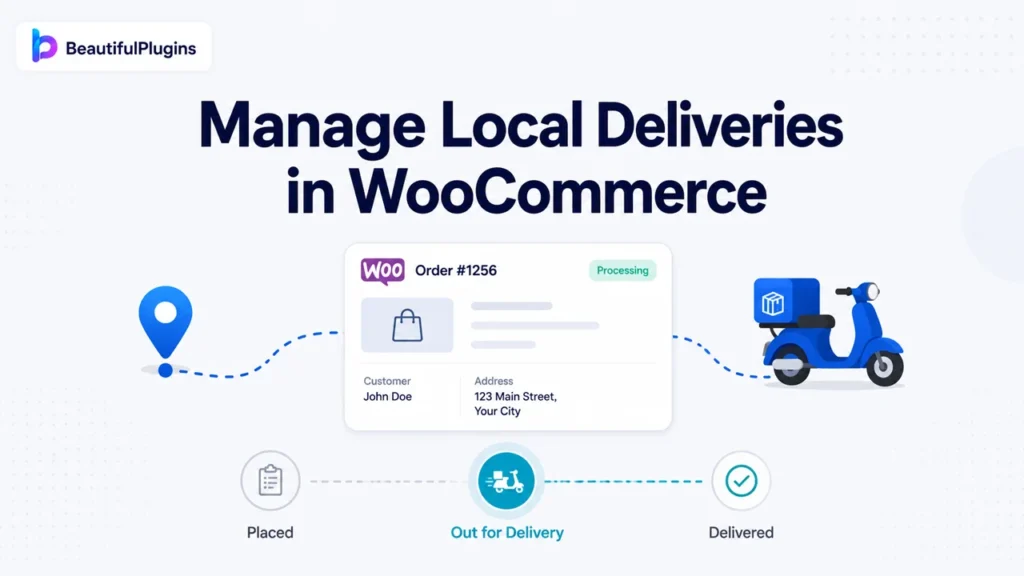
This is the part customers love. On their order details and thank-you pages, buyers see a visual timeline that tracks their order’s journey: placed, assigned, out for delivery, and delivered. They can see the current status in real time and even an expected delivery date, calculated automatically from the order date and your configured timeframe.
The result is fewer “where’s my order?” messages and a delivery experience that feels professional instead of improvised.
What You Get at a Glance
For store owners, Delivery Manager means organized assignments, automatic order notes, and full visibility into every delivery without leaving WooCommerce. For your drivers, it means a simple mobile dashboard showing exactly what they need to deliver and where. And for your customers, it means transparency: they always know where their order is and when to expect it.
It’s also built to WordPress and WooCommerce security standards, with proper permission checks, sanitized inputs, and efficient queries, so it won’t put your store or its performance at risk.
Who Delivery Manager Is For
The plugin fits any business that runs its own local deliveries, including:
- Restaurants and food delivery coordinating drivers across the dinner rush
- Grocery stores and supermarkets managing same-day delivery routes
- Pharmacies and medical suppliers handling prescription deliveries with accountability
- Flower and gift shops making sure time-sensitive orders arrive on schedule
- Local e-commerce stores that want a professional delivery process
If your team delivers what you sell, this is built for you.
Free vs Pro, and Custom Needs
Everything above works in the free version, which is genuinely useful on its own. For stores with larger or more complex delivery operations, there’s a Delivery Manager Pro version with additional capabilities to grow into.
And if your store needs something specific that no plugin covers, our team builds custom WooCommerce solutions directly. You can learn more on our WooCommerce development services page.
Frequently Asked Questions
Not really. WooCommerce handles orders and standard shipping, but it has no native way to assign delivery drivers, track an “out for delivery” status, or show customers a live delivery timeline. A plugin like Delivery Manager adds those features.
Yes. With Delivery Manager for WooCommerce, you create driver accounts using the built-in “Delivery Person” role, then assign any order to a driver from the order screen using a quick search field.
No. Drivers can only see the orders assigned to them, along with the customer and item details needed for delivery. They cannot access payment information or other customers’ orders.
Yes. Customers see a visual timeline on their order and thank-you pages showing each stage from order placed to delivered, plus the current status and an expected delivery date.
Yes, the core plugin is free on WordPress.org and includes driver assignment, status tracking, and the customer timeline. A Pro version is available for stores that need more advanced delivery features.
Yes. The plugin supports WooCommerce HPOS (High-Performance Order Storage) and the Cart and Checkout blocks, and the latest version is tested with current WooCommerce and WordPress releases.
Get Started Today
Managing local deliveries shouldn’t mean spreadsheets and guesswork. With Delivery Manager for WooCommerce, you can assign drivers, track every order in real time, and give customers a delivery experience that builds trust.
Download Delivery Manager for WooCommerce for free and set up your first delivery in minutes. If it makes your operations smoother, we’d be grateful for a quick review on WordPress.org to help other store owners find it.